Motion Streaming Guide
◆ VMC Protocol
Send motion data in real-time using VMC Protocol.
Connect to the same network as the receiver, then specify the receiver's IP address and port number to send.
(Your PC's firewall or security software may block the connection. If so, you may need to temporarily disable security settings — but be sure to re-enable them after use.)
◆ OSC Tracker
This video explains how to use the "Send OSC Tracker Information" feature in the Premium Feature to connect to VRChat.
English subtitles are available — select "English" from the subtitles (CC) menu in the YouTube player.
※ This video contains screens from an older version, but the basic steps remain the same.
Latest Setup Guide (v1.4)
■ Calibration
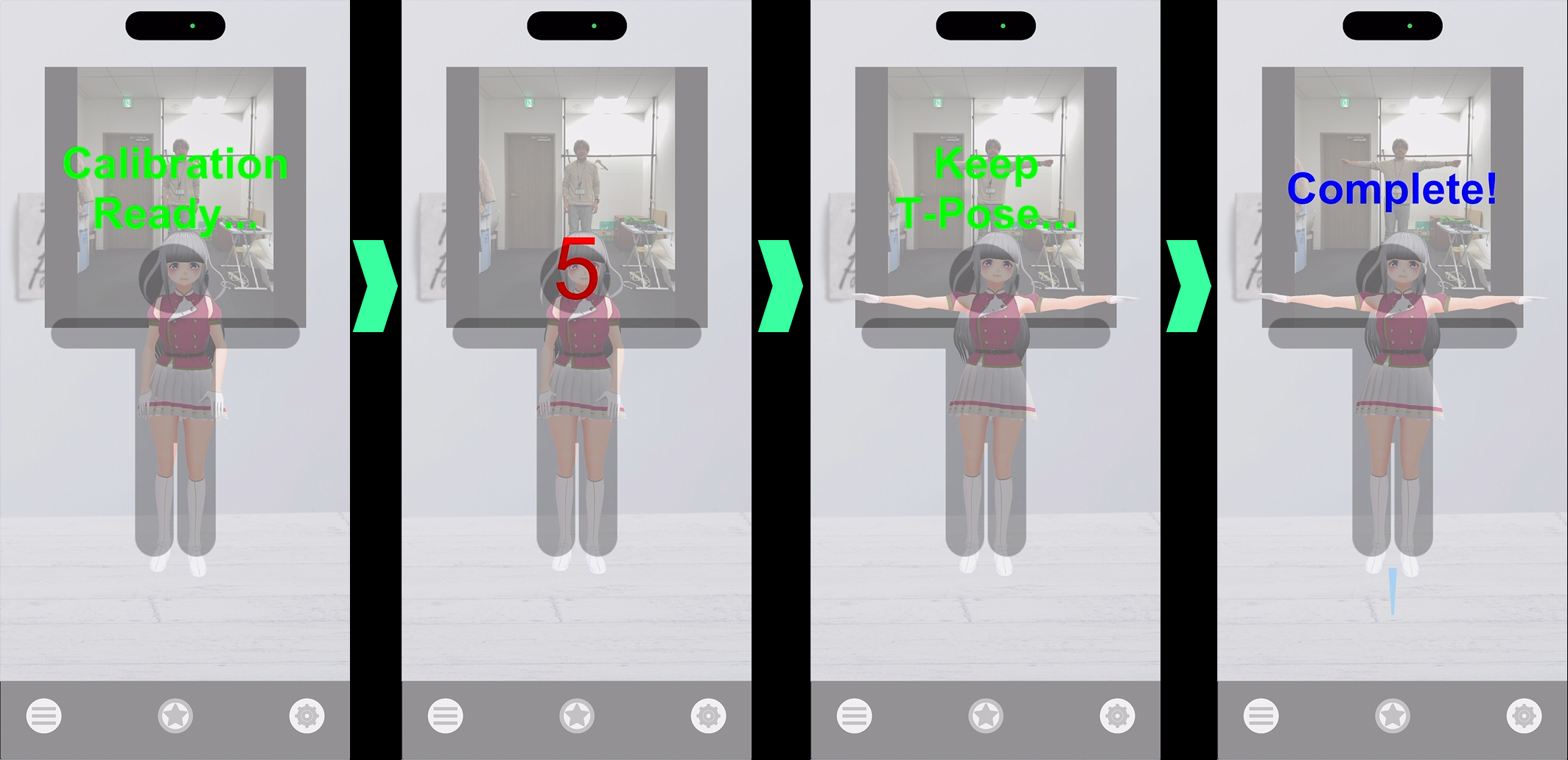
From v1.4 onwards, calibration is required for tracking that matches your avatar.
Tap "Calibration And Start" — a 5-second countdown will begin. Strike a T-pose as instructed.
Then configure the receiving side.
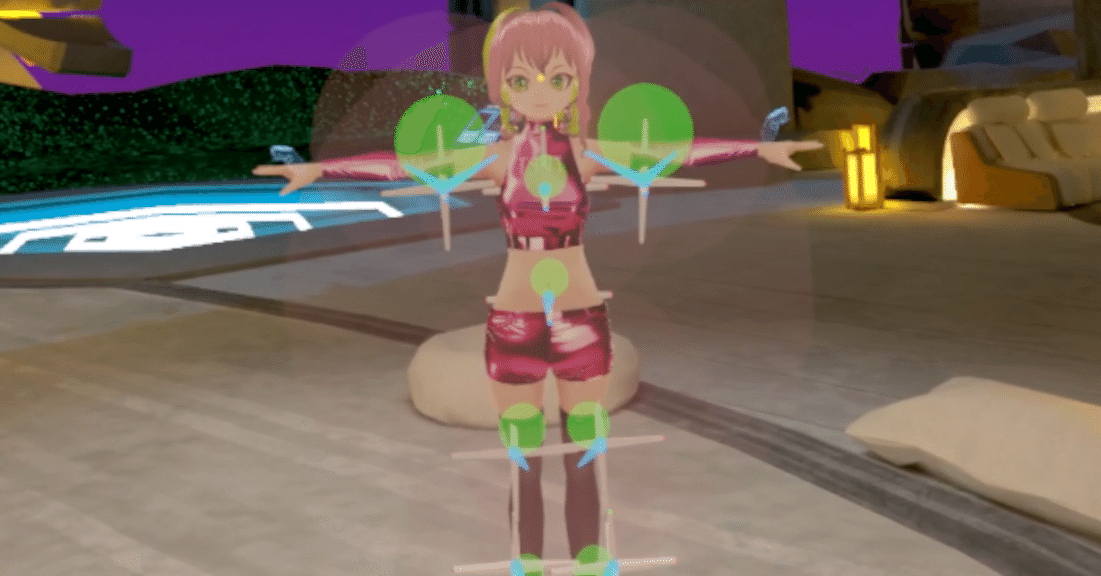
For VRChat: enable 11-point mode. You will see 8 markers appear on the VRChat calibration screen.
If the markers appear at an appropriate size on the receiving side, everything is working correctly.
■ Tracker Position Adjustment
If tracker positions are not correctly aligned, the overall movement will be off.
Since the upper body (chest) has the most influence, it is recommended to adjust in the following order:
- Chest
- Hip
- Knee
- Foot
Getting the chest position right first will help stabilize the overall accuracy.
The elbow tracker works best when placed near the midpoint between the shoulder and elbow (upper arm).
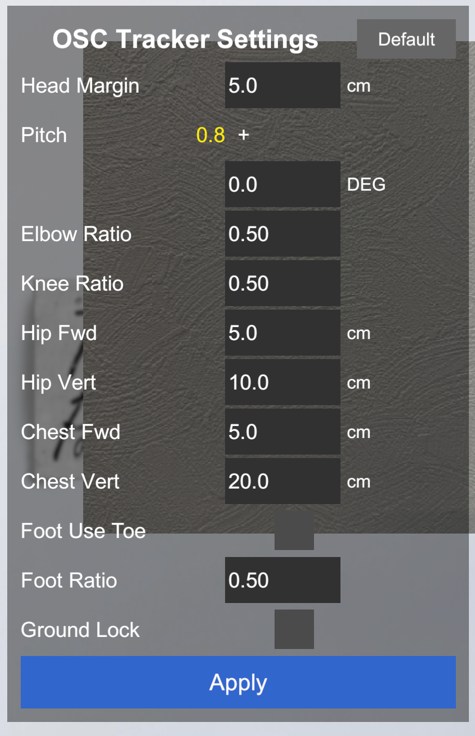
■ Settings (OSC Send Settings)
- ・Default
- Resets all settings to default values (※ changes are not applied until you press Apply)
- ・Head Top Margin (default: 5cm)
- Adjusts the height difference between your actual height and the headset height. The default value is usually fine.
- ・Pitch (display only)
- Displays the forward/backward tilt of the camera at calibration time. This value is corrected automatically.
※ Left/right tilt (roll) is not corrected — keep the device as level as possible. - ・Pitch Offset (default: 0.0°)
- Manually corrects the pitch angle. Only adjust if foot tracking is unstable (usually not needed).
- ・Elbow Ratio (default: 0.5)
- Adjusts the elbow tracker position.
0: shoulder / 1: elbow → 0.5 = midpoint (recommended) - ・Knee Ratio (default: 0.5)
- Adjusts the knee tracker position.
0: hip joint / 1: knee → recommended range: 0.5–0.9 - ・Hip Forward (default: 5cm)
- Adjusts the front/back position of the hip tracker.
- ・Hip Vertical (default: 10cm)
- Adjusts the up/down position of the hip tracker.
- ・Chest Forward (default: 5cm)
- Adjusts the front/back position of the chest tracker.
- ・Chest Vertical (default: 10cm)
- Adjusts the up/down position of the chest tracker. Getting this right first is important.
- ・Foot Use Toe (default: Off)
- Specifies where the tracker is attached.
Off: shin (knee to ankle) / On: top of foot (toe to ankle) - ・Foot Ratio (default: 0.5)
- Adjusts the foot tracker position.
Off: 0 = knee / 1 = ankle
On: 0 = ankle / 1 = toe - ・Ground Lock (default: Off)
- Locks feet to the ground. Leave this OFF in most cases.
- ・Apply
- Applies the current settings.
■ Troubleshooting
- ・Arms won't fully extend
- Try slightly decreasing the "Arm vs Height Ratio" — a reduction of around 2–3% may help.
▼ See Details
Step-by-step instructions for OSC Tracker setup and VRChat integration, updated for the latest version.